If GA4 DebugView shows no events, no page_view, or inconsistent activity, your GA4 or GTM configuration is likely misconfigured, blocked, or sending data to the wrong property.
If you’re unsure where the tracking break occurs, you can start here Run Free GA4 Diagnostic
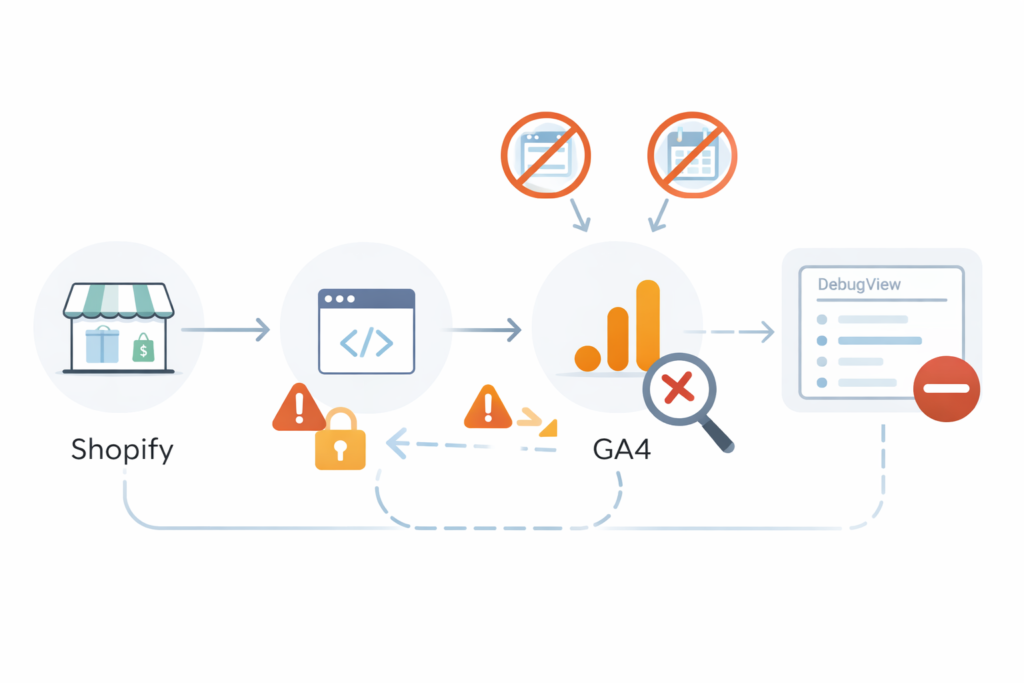
If GA4 DebugView is not working, it usually means one of three things:
- Debug mode isn’t properly enabled
- Events aren’t firing at all
- Consent or configuration is blocking data
DebugView is designed to show live event activity.
If it’s empty, delayed, or inconsistent, that’s a signal something is broken upstream.
Below are the most common causes and fast checks.
Why GA4 DebugView Shows Nothing
If the cause isn’t obvious, Run Free GA4 Diagnostic and identify where tracking breaks between Shopify, GTM, and GA4.
1) Debug mode isn’t actually enabled
DebugView only shows events when debug mode is active.
Ways to enable debug mode:
- GTM Preview mode
- Google Tag Assistant
- Adding
?debug_mode=trueto your URL (temporary test)
If debug mode isn’t active, DebugView stays empty — even if events are firing.
2) Events are not firing at all
If page_view doesn’t appear:
- The GA4 configuration tag may not be firing
- GTM container may not be published
- Wrong measurement ID may be installed
If page_view appears but custom events do not:
- Trigger conditions are wrong
- Consent is blocking the event
- Event name mismatch
If events aren’t firing at all, see our guide on GA4 Events Not Firing.
3) Consent banner blocks analytics
Very common.
If your site uses a CMP:
- Analytics storage may be denied until consent
- Events may fire before consent updates
- Debug mode may not bypass consent restrictions
Test:
- Open site
- Accept cookies
- Trigger the event again
- Re-check DebugView
4) You’re in the wrong GA4 property
This happens more than people think.
If:
- Events fire in GTM preview
- But DebugView shows nothing
If GTM preview shows triggers not activating or tags not firing, you may have a Google Tag Manager Not Firing Tags issue.
You may be looking at the wrong GA4 property or stream.
Verify:
Admin → Data Streams → Measurement ID
Match it against what’s installed on the site.
5) Ad blockers / browser extensions interfere
Test:
- Incognito window
- No extensions
- Different browser
Fast Diagnostic Flow
- Confirm measurement ID
- Confirm GTM publish status
- Enable preview mode
- Accept consent
- Check DebugView
- Verify property
If after this DebugView still shows nothing, the issue is usually:
- Consent implementation timing
- Trigger logic mismatch
- Duplicate/conflicting GA4 installs
- Incorrect tag configuration
At that point, guessing wastes hours.
Not sure what’s broken?
Run a quick GA4 tracking diagnostic to identify the issue.
Diagnostic fee is credited toward repair if you proceed.

© 2026 Operational Memory · Privacy Policy · Terms of Service · Specified Commercial Transactions Act
Proudly powered by WordPress